Racecraft 1199 Race Weekend Guide
Download Racecraft for iOS or Android

Set up your team
Team admin
- Download Racecraft and sign up.
-
Open Community → Groups → New group.
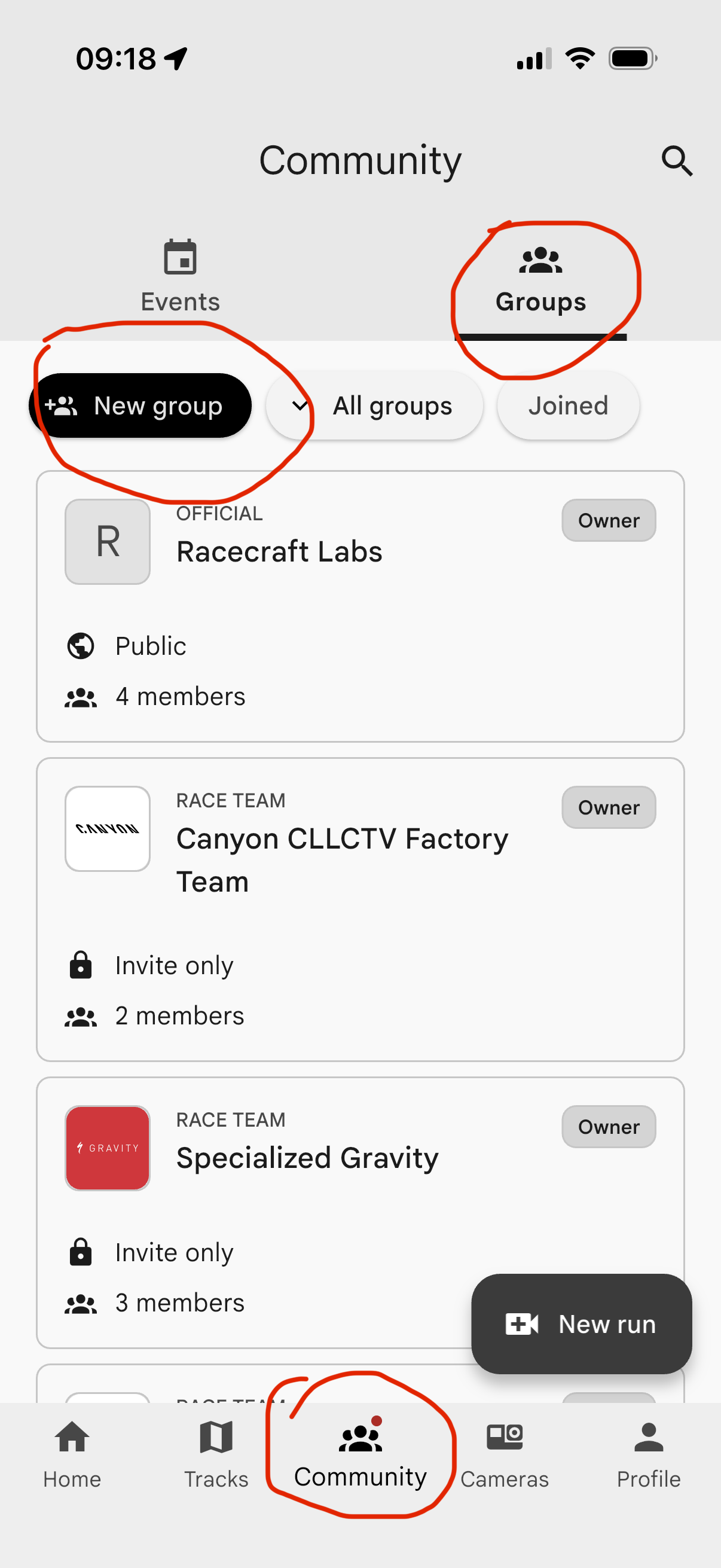
Community → Groups → New group. -
Enter your team’s name, select Race team, choose Invite only, then tap Create.
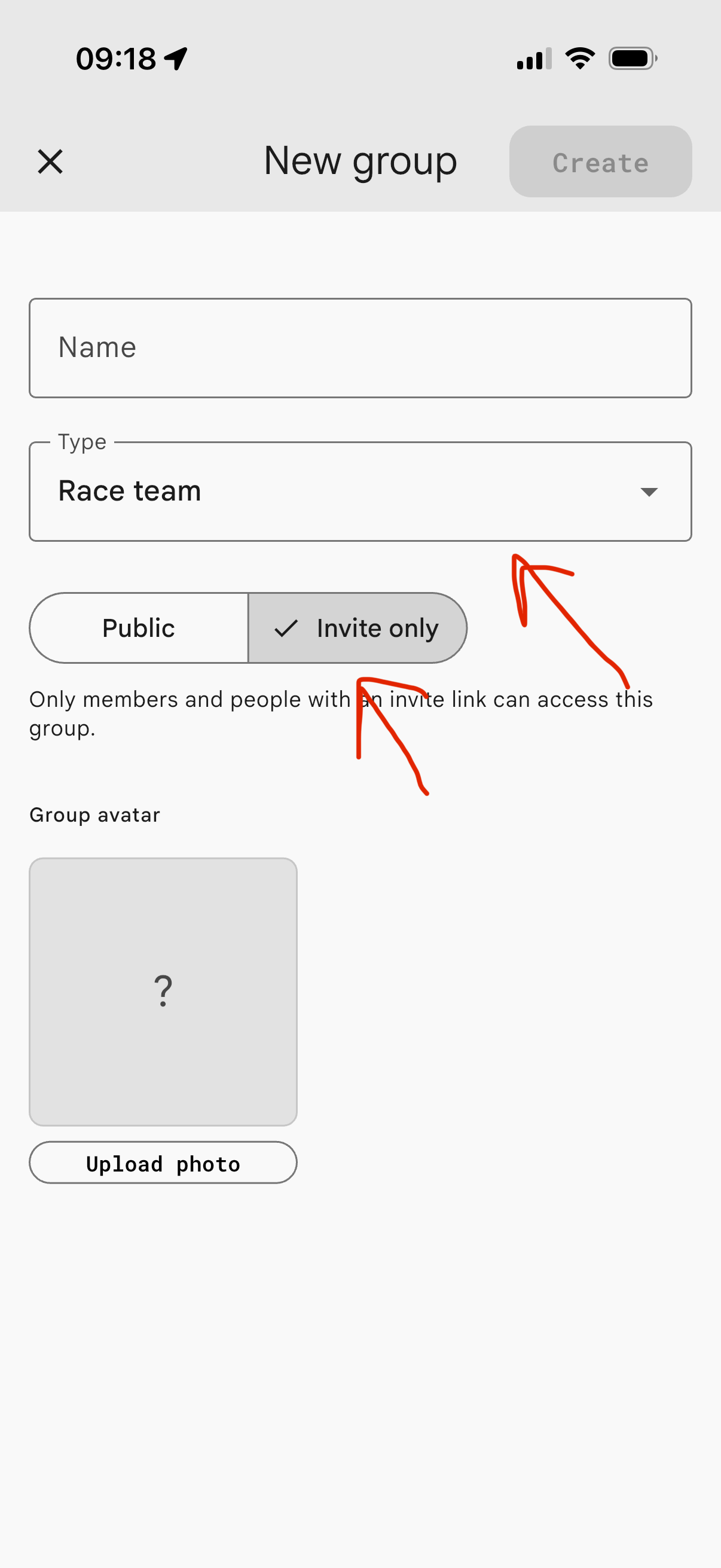
Choose Race team and Invite only. -
Open your team page, tap Invite, and share the link with your riders and support crew. Anyone with the link can join, so keep it within your team.
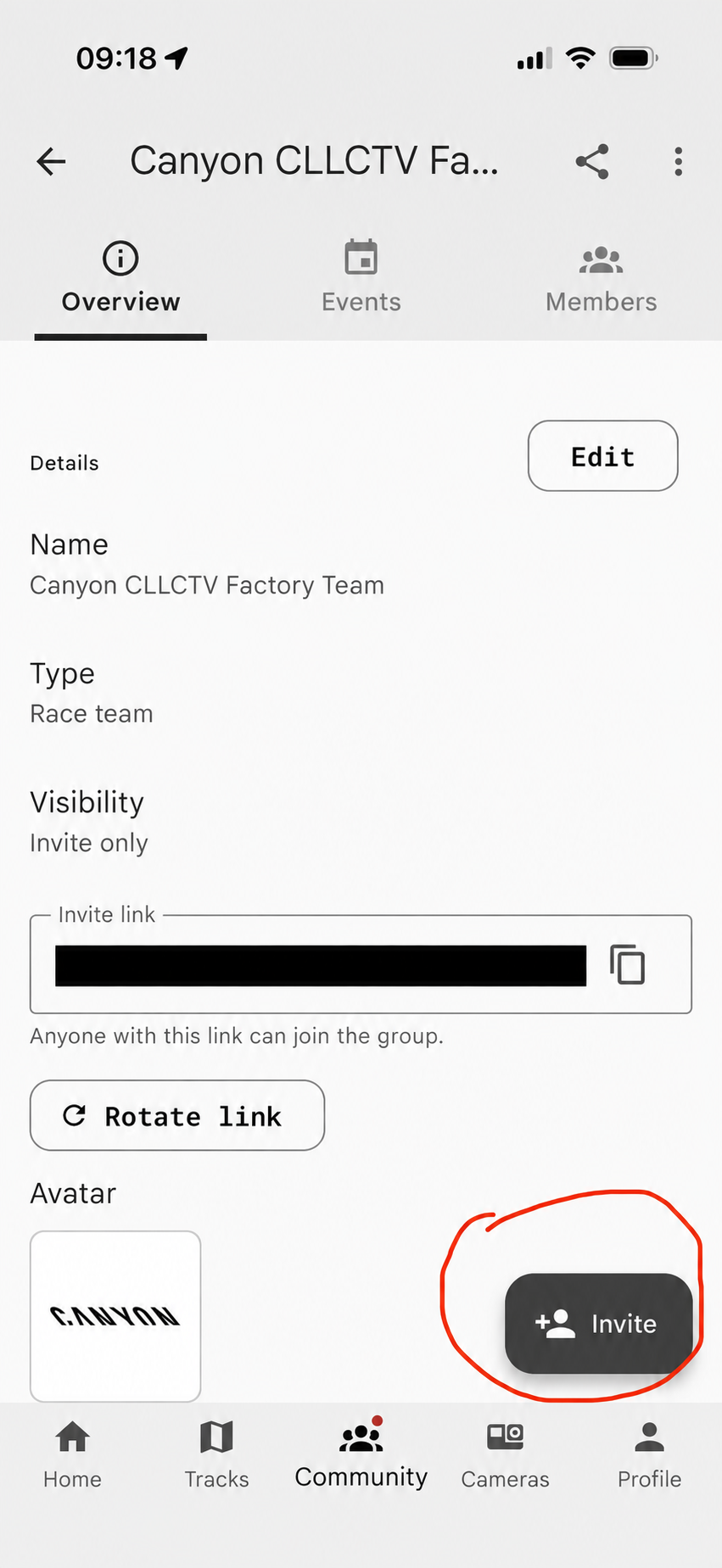
Tap Invite to share your team’s link.
Everyone who wants access
- Download Racecraft, sign up on your own device, and open the invite link to join. This includes riders, coaches, mechanics and anyone reviewing runs.
Riders
-
Open Cameras → Add camera and follow the pairing instructions for your GoPro, Insta360 or DJI.
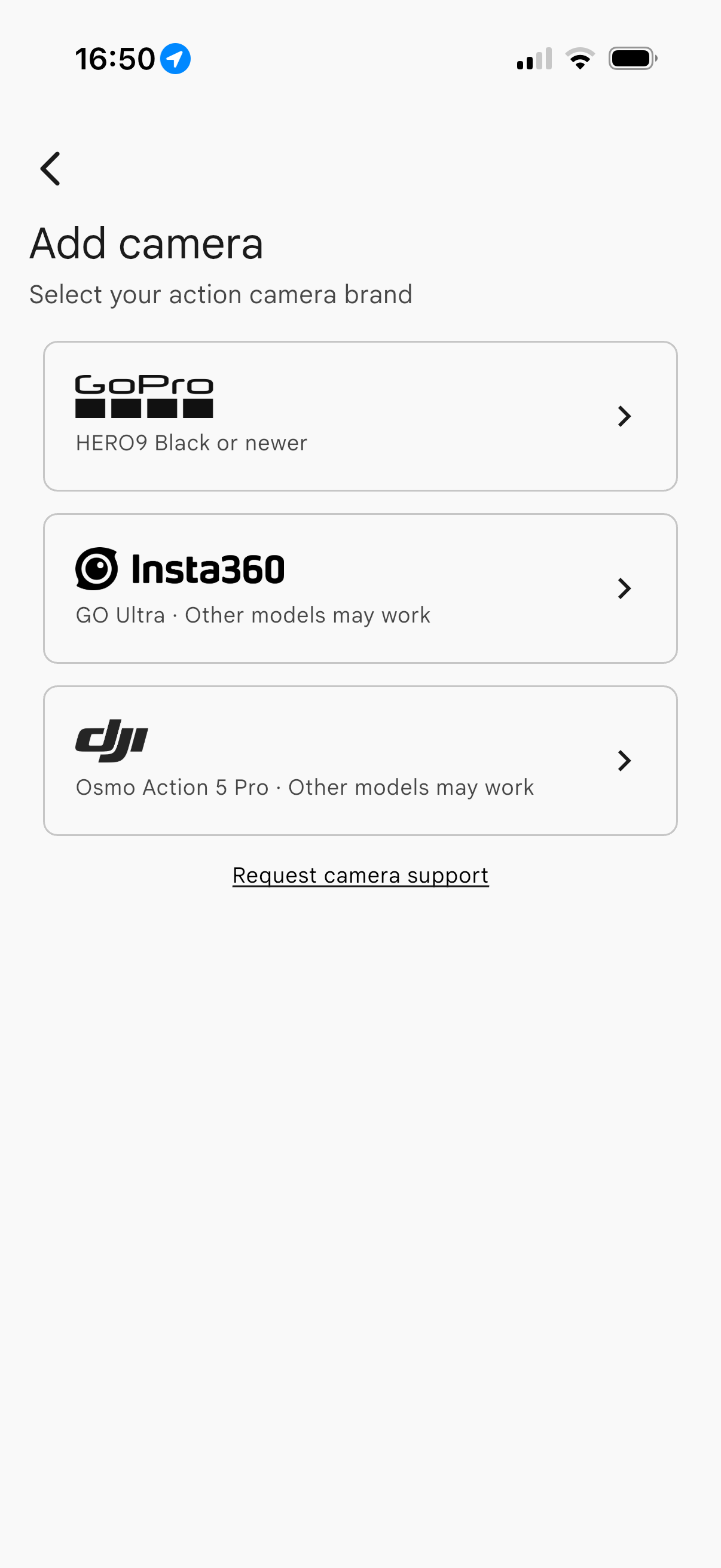
Choose your camera brand and follow the pairing instructions.
Direct pairing supports GoPro HERO9 Black or newer, Insta360 GO Ultra and DJI Osmo Action 5 Pro. Other Insta360 and DJI models may work. You can also upload footage already saved on your phone.
Setup complete. Coaches and other viewers don’t need to pair a camera.
After your run (riders)
1. Record a full or partial run
Record the whole run or just the section you’re working on. For analysis, partial runs must cover at least two split points on the event or track.
2a. Open the official event — recommended
You can upload to the public event and keep your footage private (only you) or share it only with your race team.
Open the 1199 UCI World Cup event

Use the button above, or open Community → Events → UCI DH WC - Whistler.
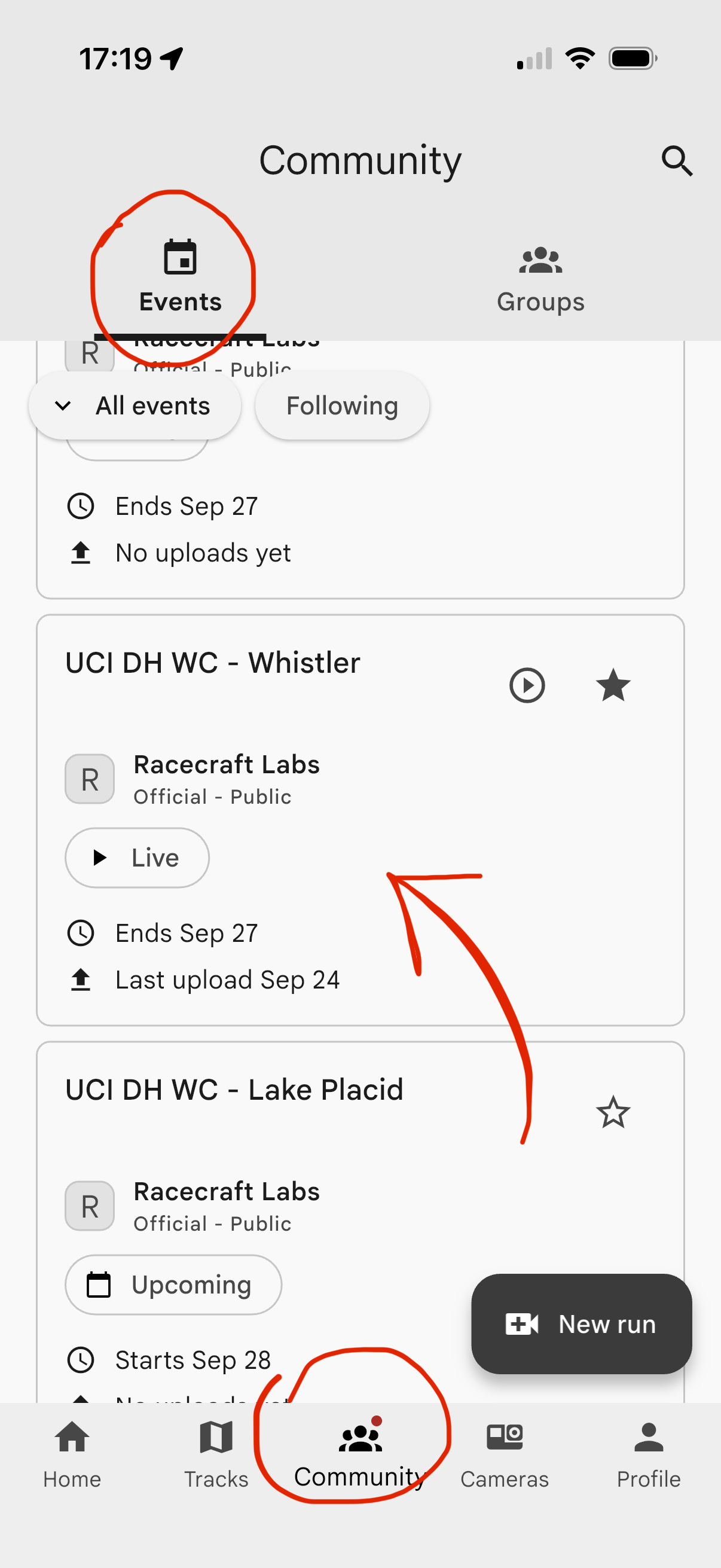
2b. Create your own track — for custom splits
Use your own track if you want to define your splits.
New tracks and their first setup run, including footage, must currently be public (changes coming soon).
-
Open Tracks → New track, enter a name and location, then add your first run.
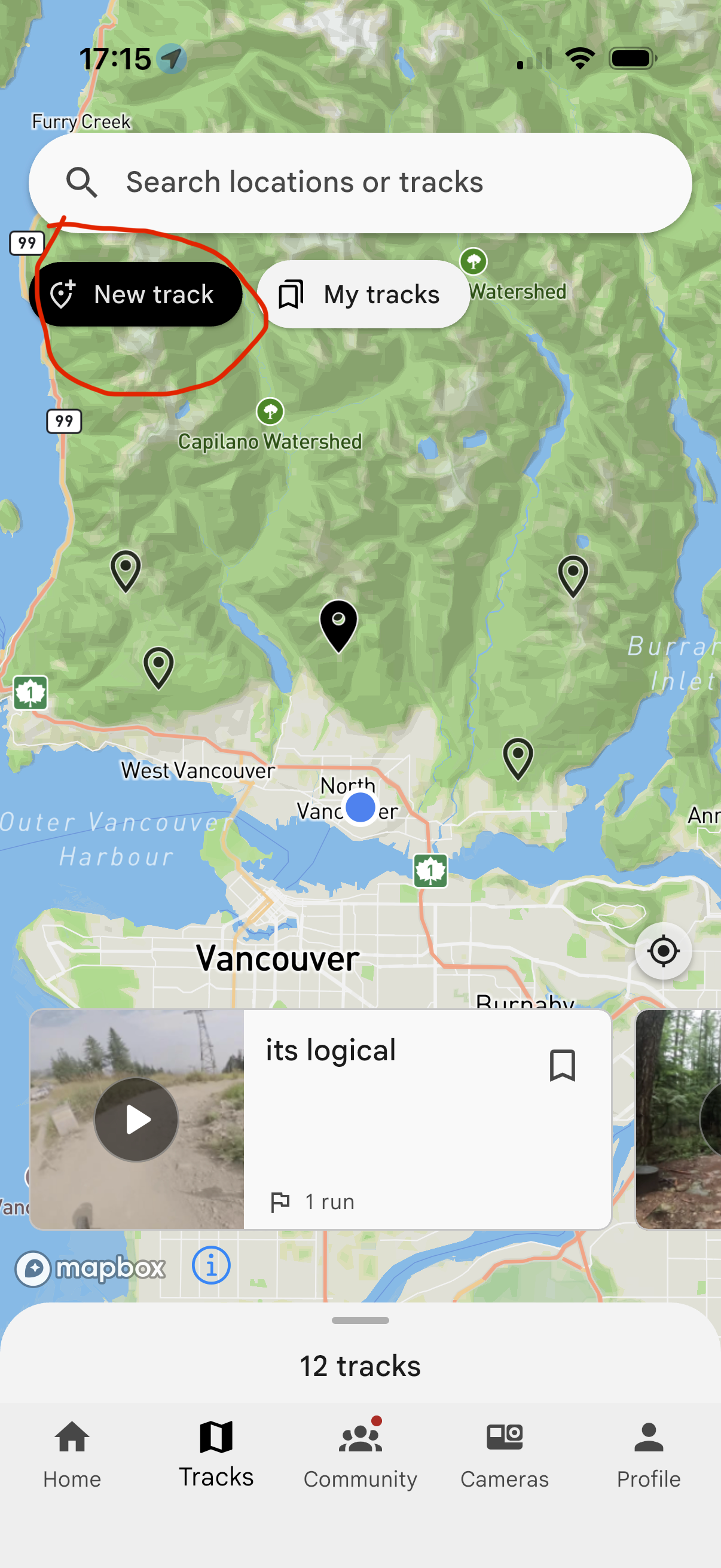
Tracks → New track. - Follow the upload steps below.
- Once it processes, tap Set up track and confirm the start, finish and intermediate splits.
- Share the track link with your team. Later runs use these splits and can have team-only footage.
3. Upload your run
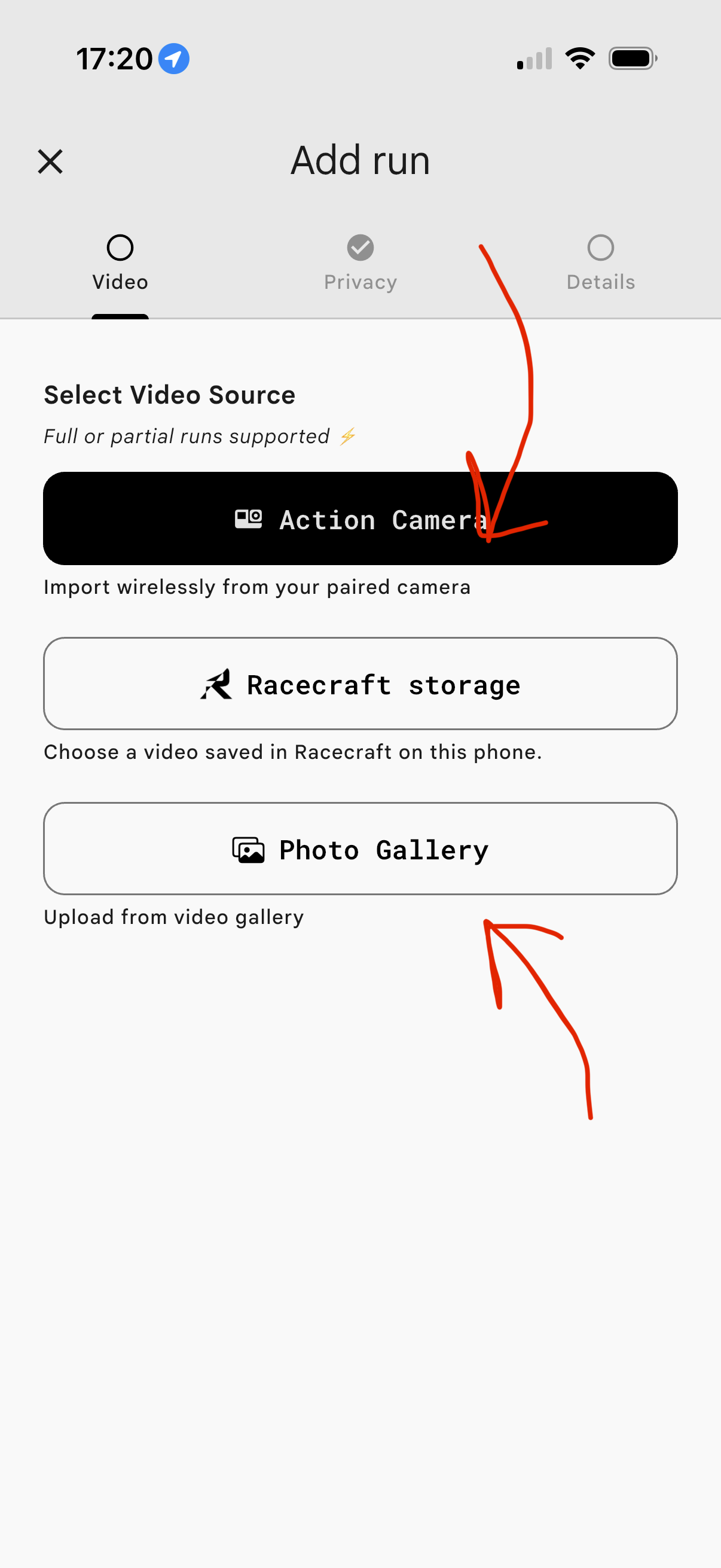
Tap New run, choose Action Camera and select your recording. For footage already on your phone, choose Photo Gallery.
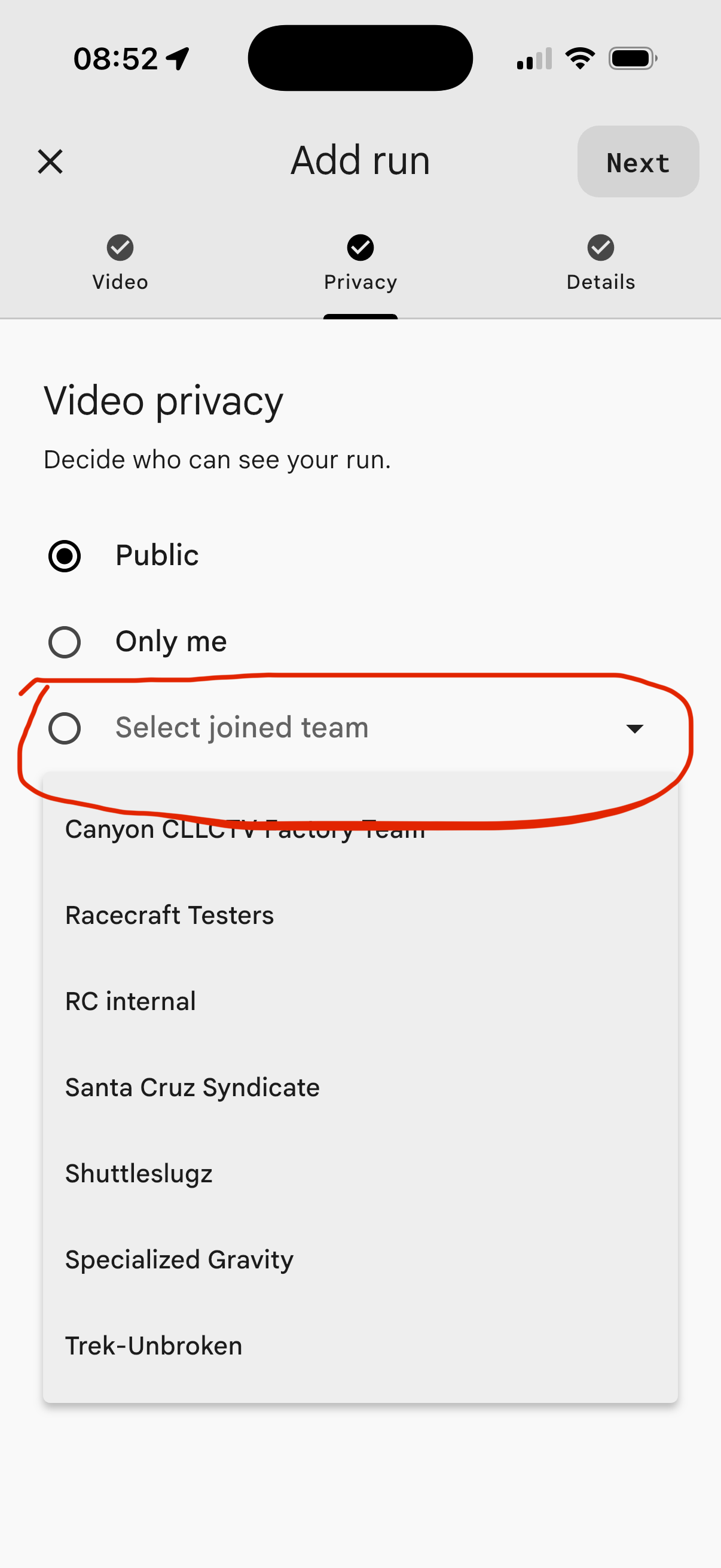
Under Video privacy, choose Only me or Select joined team → your team, then tap Upload.
4. Wait for compression to complete
Keep Racecraft open while your run shows Compressing….
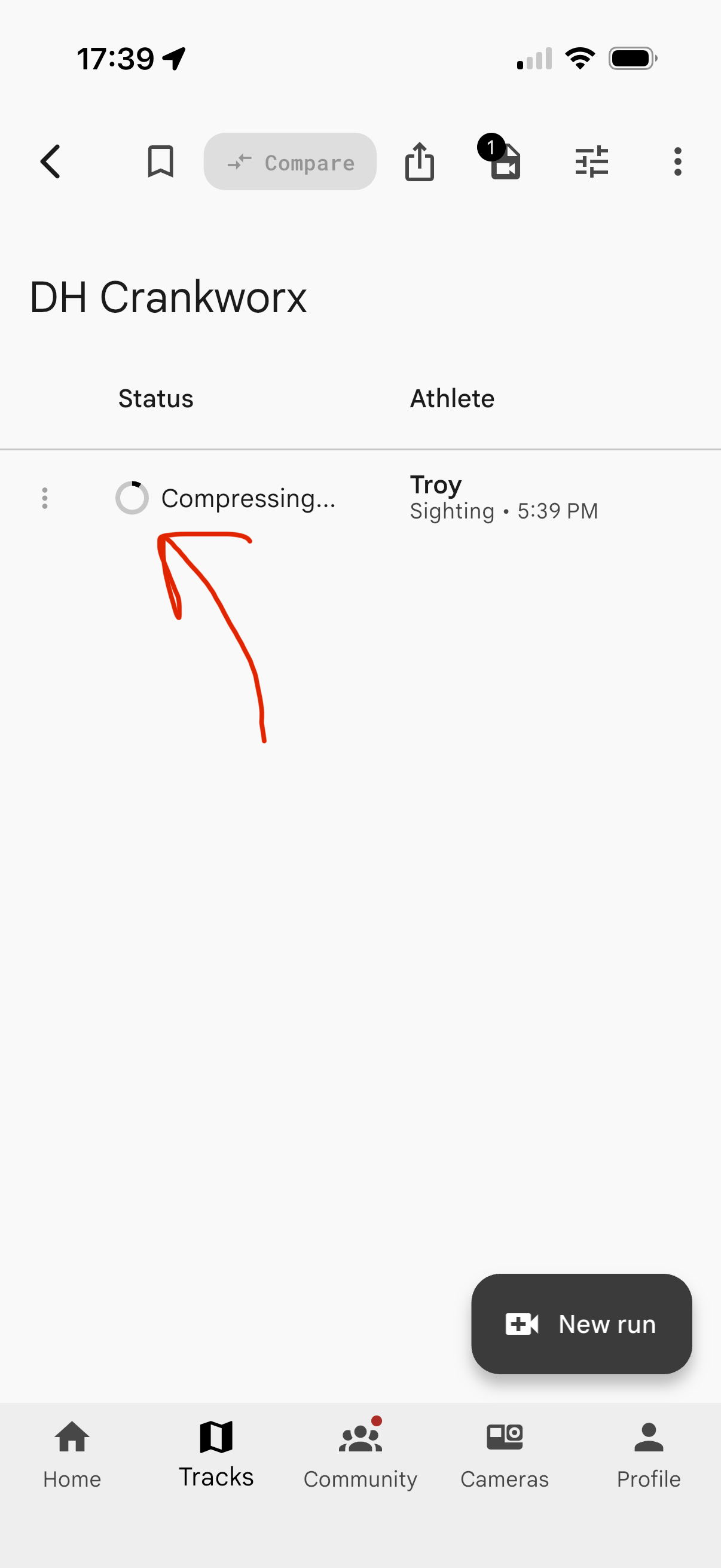
When compression finishes, put your phone away. Racecraft will upload and process the run in the background.
Analyze runs (non-riders)
You’ll be notified when splits are ready.
Confirm splits
-
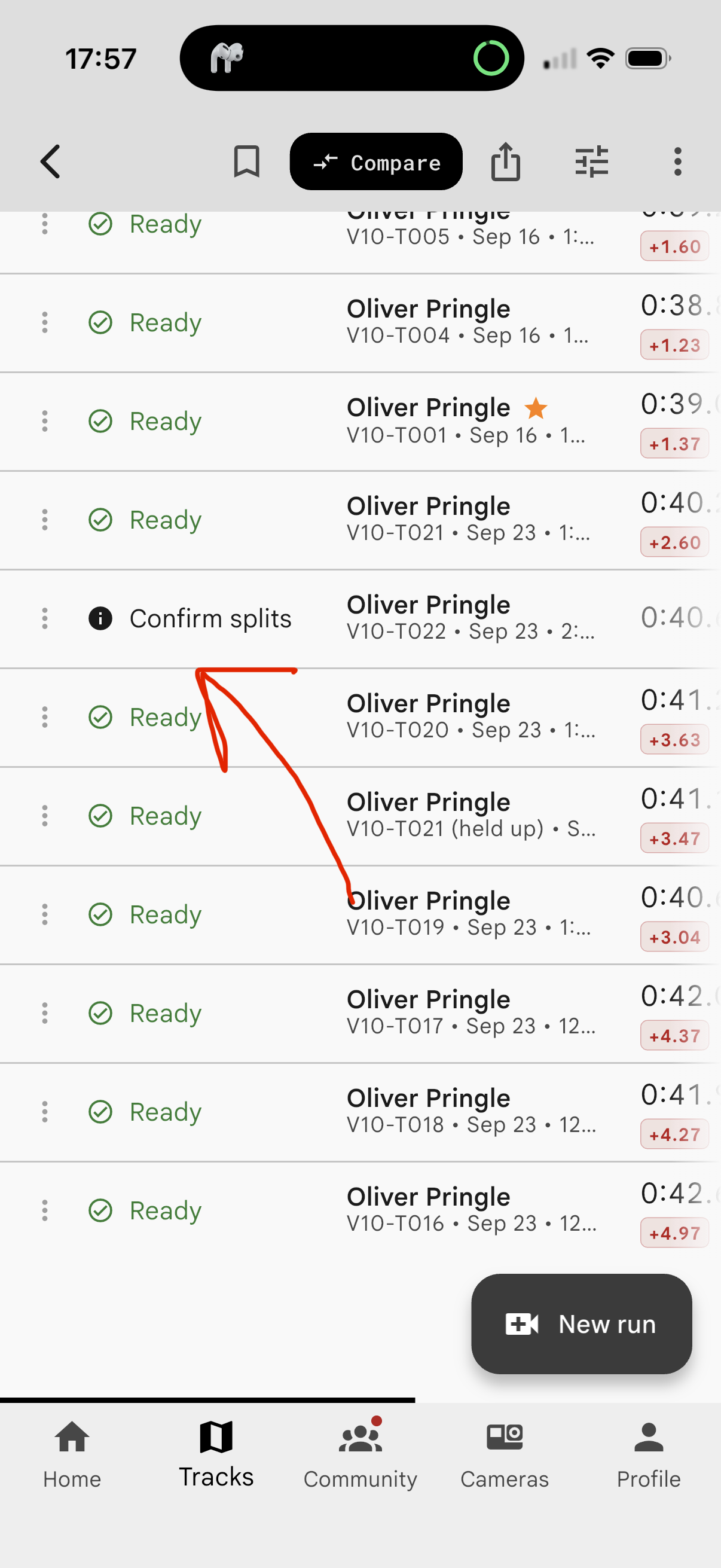
Open the run marked Confirm splits.
-
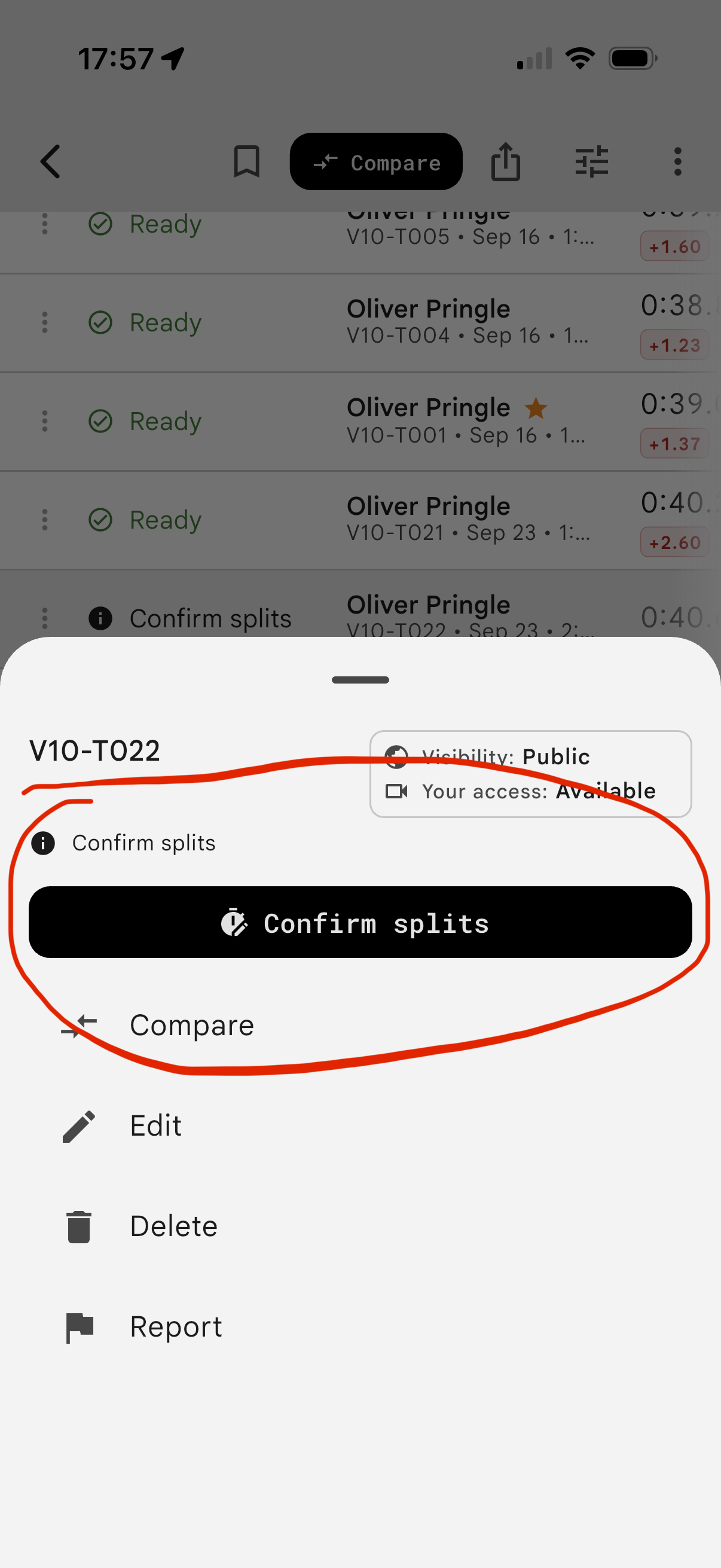
Tap Confirm splits.
-
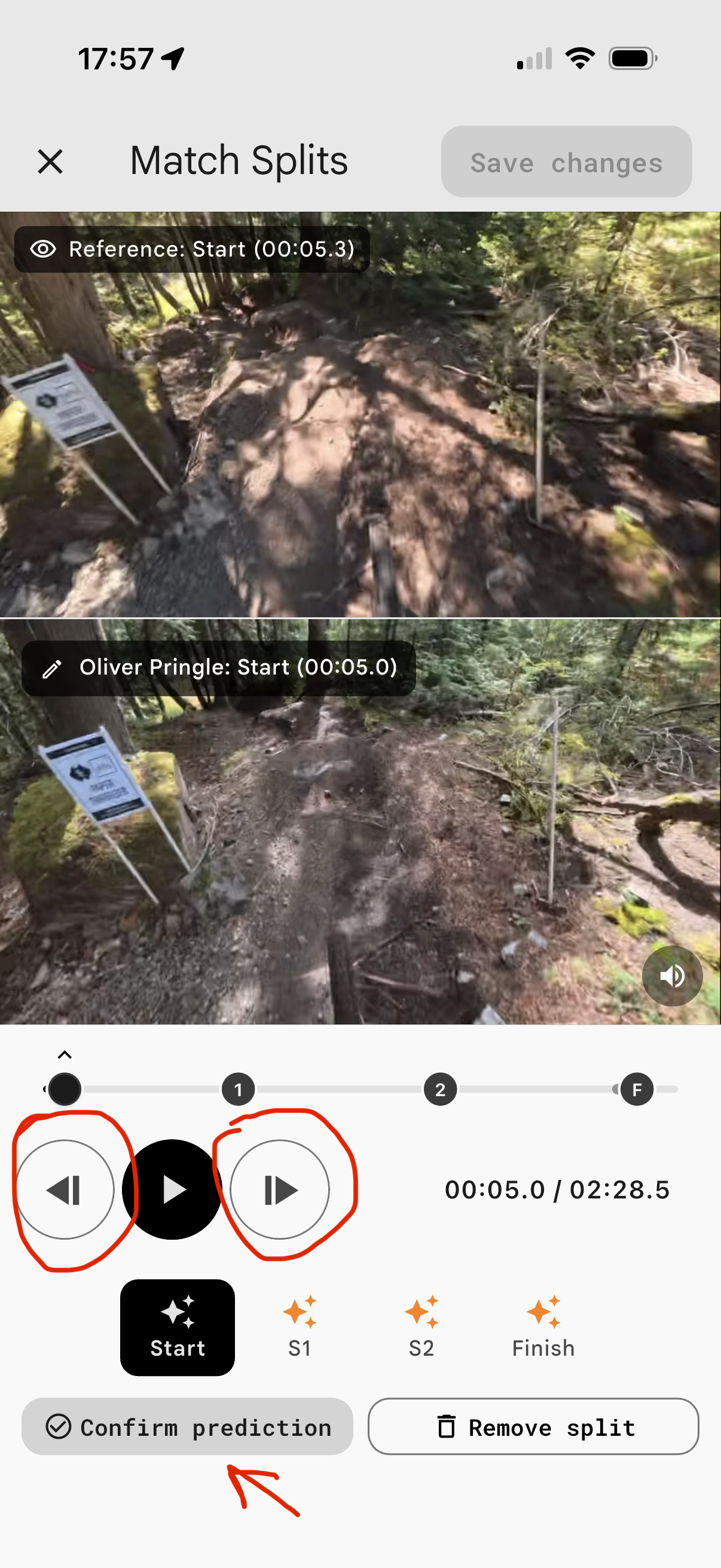
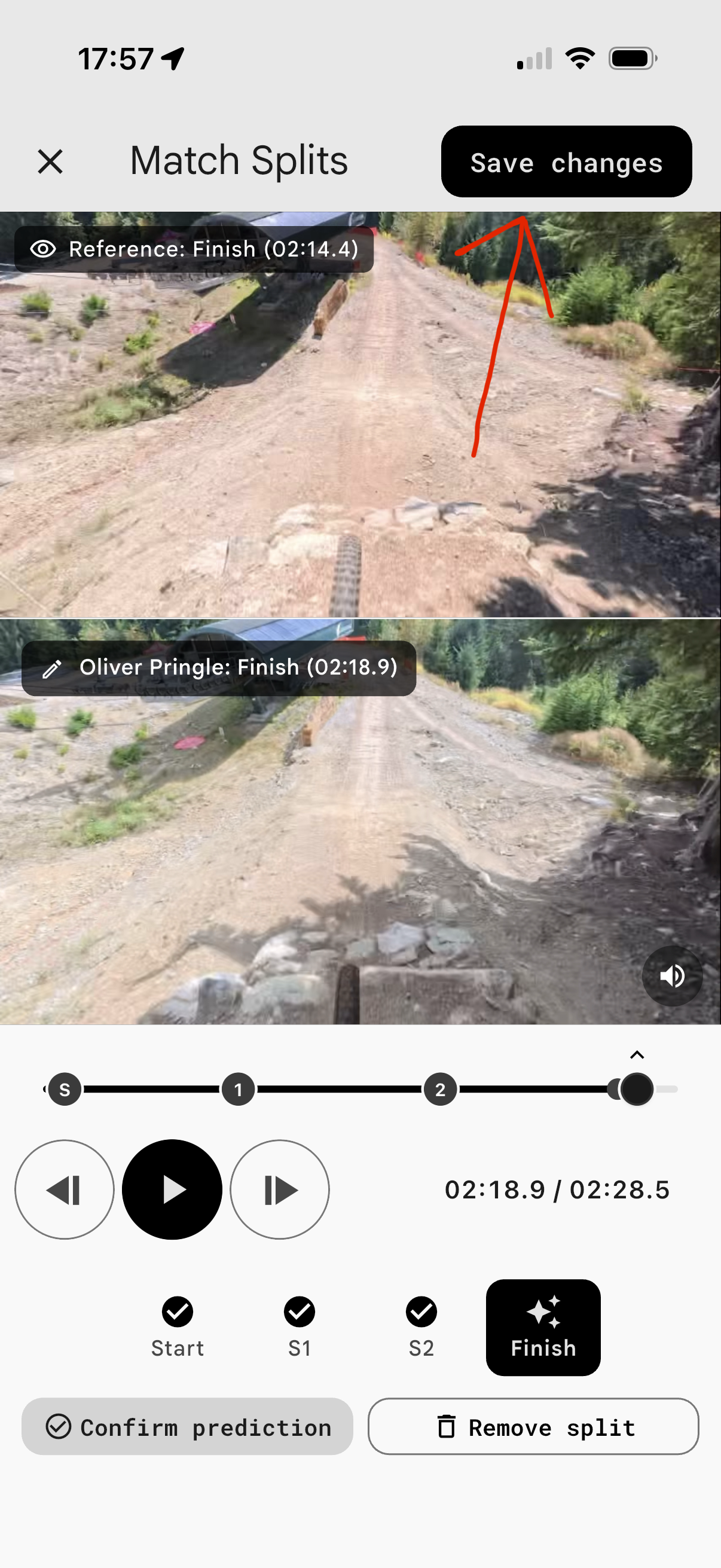
Match each split to the reference: Confirm prediction, or adjust with the frame buttons and tap Set here.
-
Tap Save changes.
Compare runs
-
Open the 1199 event or your track, then tap Compare.
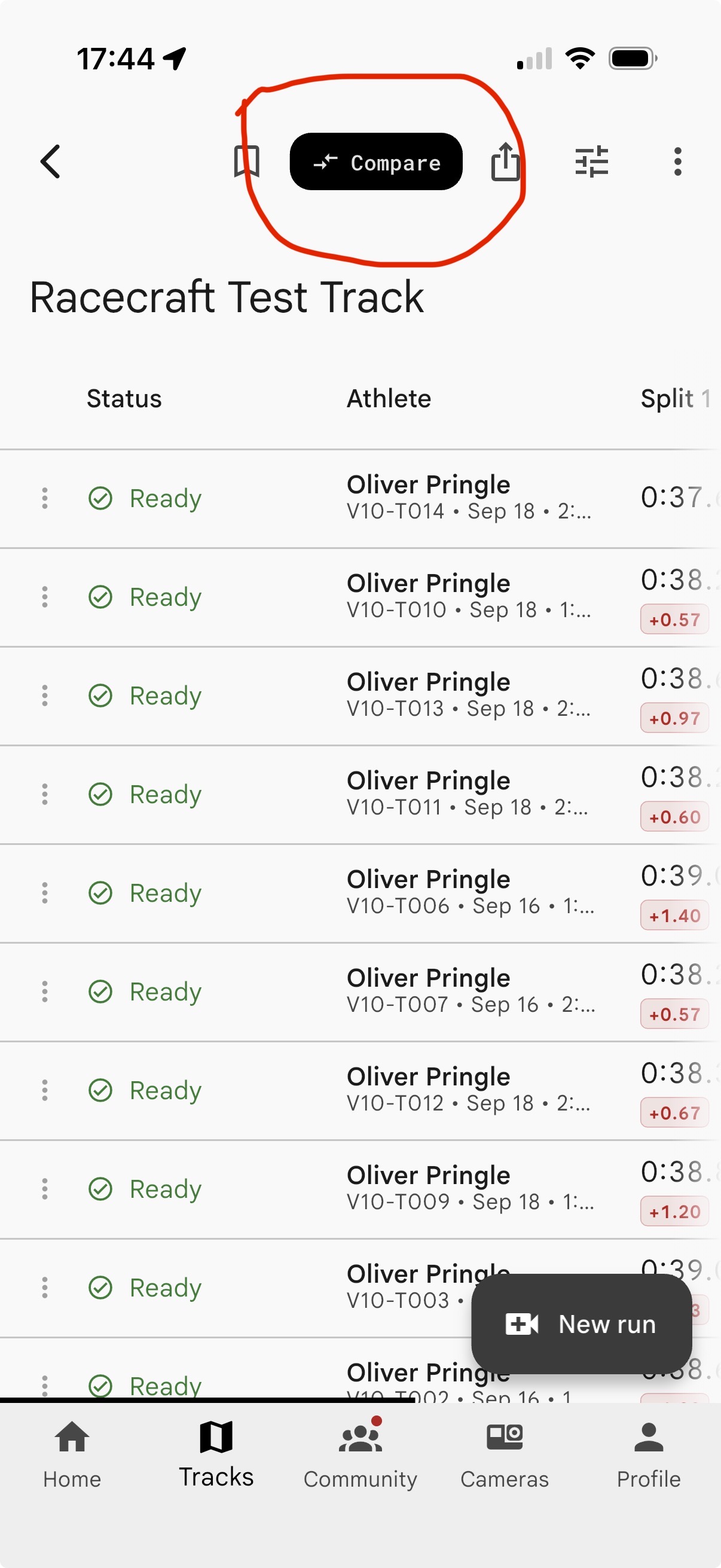
Tap Compare above the run list. -
Select a Run to analyze and a Reference run from the same event or track, then tap Start Comparison.
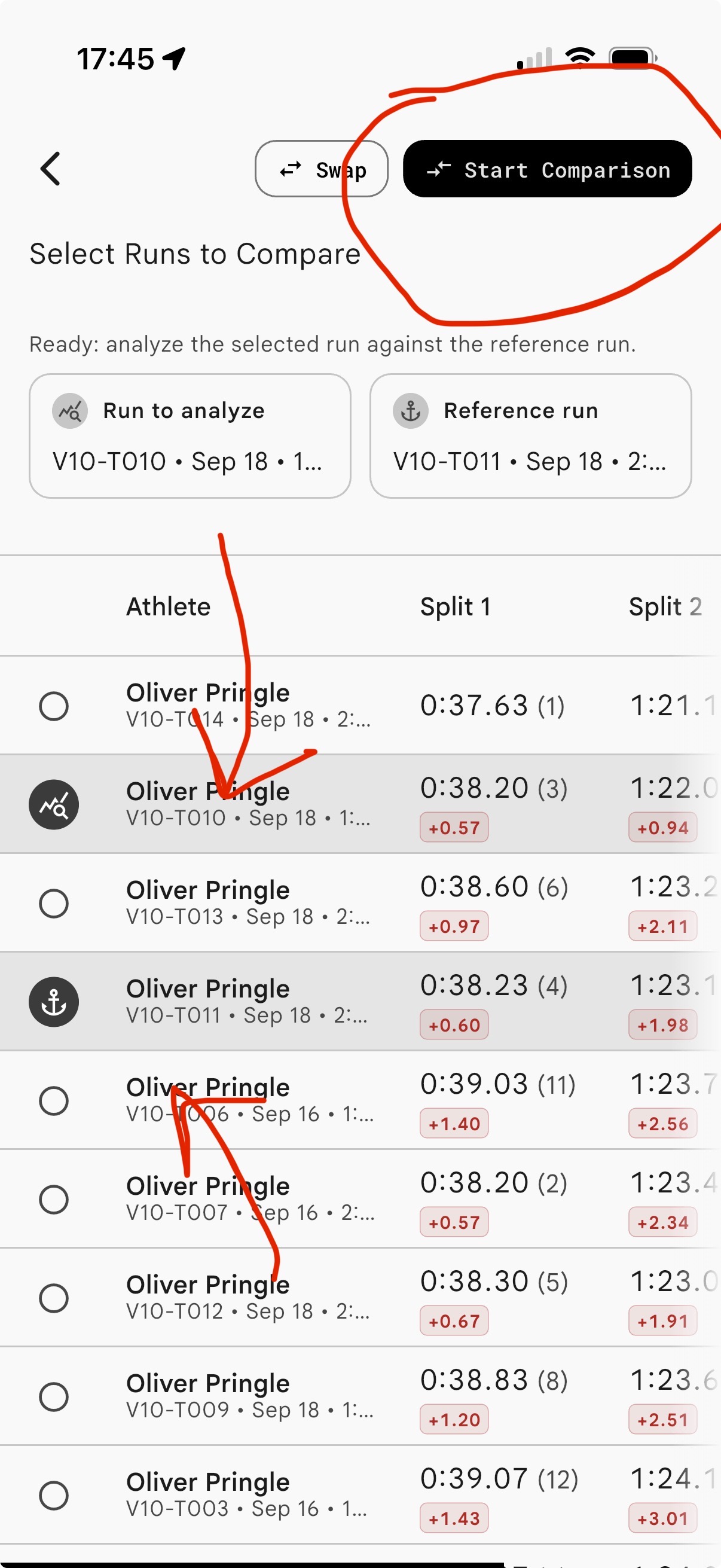
Select two runs, then tap Start Comparison. -
Tap Section below the videos.
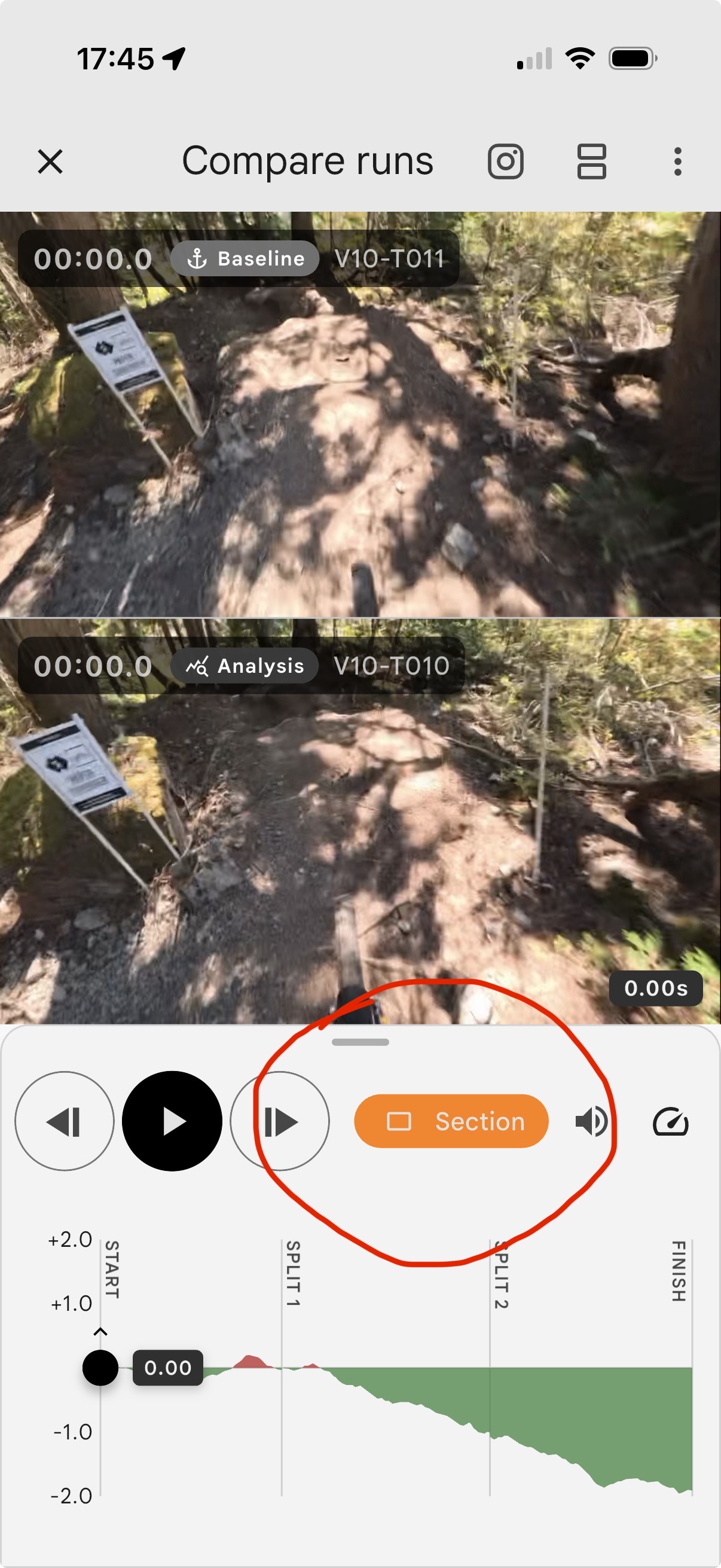
Section mode allows you to find time in specific parts of the track. -
Find time on track!
Text Ollie on +1 604 401 6325 — I’ll be in the pits.